
INNOVA SWISS - Aktuelle Animalium Scan Software Versionen

ANIMALIUM SCAN
Important: Please save before each new software update das Sie downloaden Ihre Reportdaten auf einen external memory or a USB stick. Otherwise the data could be lost! Bei jedem Software-Update wird die komplette ANIMALIUM SCAN neu installiert!
-Software neu installiert!
Achtung Schritte wie folgt:
- Close the ANIMALIUM SCAN on the computer/notebook.
- Plug in the Security dongle (silver or blue) an Ihr Notebook – Computer an.
- Before installing the new software, please switch off the VIRUS-SCAN + FIREWALL away, because it can possibly block the installation!
- Klicken Sie in der menüleiste „MEDTECH“ an – Software update – schon sind sie hier!
- Click on the neueste ANIMALIUM SCAN Software-Version
- it comes „set up ex“ klicken
- „pdf Creator“ do not download (no click) den haben Sie bereits am Computer!
- weiter – weiter – fertig!
Arbeiten mit ANIMALIUM SCAN auf Apple MAC/BOOK ist möglich – jedoch nur wenn entweder Windows 7, 8 ,9 und 10,11 auf dem MAC/BOOK installiert ist!
ANIMALIUM SCAN
Important: Please save your report data to an external storage or a USB stick before downloading every new software update. Otherwise, the data could be lost! Each software update fully reinstalls the ANIMALIUM SCAN!
-Software reinstalled!
Attention, steps as follows:
- Connect the ANIMALIUM SCAN to your computer/notebook.
- Insert the security dongle (silver or blue) into your notebook or computer.
- Before installing the new software, disable the VIRUS-SCAN + FIREWALL, as they may block the installation.
- In the menu bar, click “MEDTECH” – “Software update” – and here you are!
- Click on the latest ANIMALIUM SCAN software version.
- A “set up ex” window appears – click it.
- Do not download “pdf Creator” (click “No”) because it is already installed on your computer!
- Next – Next – Done!
Working with ANIMALIUM SCAN on Apple MAC/BOOK is possible – but only if Windows 7, 8, 9, 10, or 11 is installed on the MAC/BOOK!
ANIMALIUM SCAN
Importante: Por favor, guarde sus datos de reporte en un almacenamiento externo o en un USB antes de descargar cada nueva actualización de software. ¡De lo contrario, los datos podrían perderse! ¡Cada actualización de software reinstala completamente el ANIMALIUM SCAN!
-¡Software reinstalado!
Atención, siga los siguientes pasos:
- Conecte el ANIMALIUM SCAN a su computadora o portátil.
- Inserte el dongle de seguridad (plateado o azul) en su dispositivo.
- Antes de instalar el nuevo software, desactive el ANTIVIRUS + FIREWALL, ya que podría bloquear la instalación.
- En la barra de menú, haga clic en “MEDTECH” – “Actualización de software” – ¡y listo!
- Haga clic en la última versión del software ANIMALIUM SCAN.
- Aparecerá una ventana de “set up ex” – haga clic en ella.
- No descargue “pdf Creator” (haga clic en “No”) ya que ya está instalado en su computadora.
- ¡Siguiente – Siguiente – Listo!
El uso de ANIMALIUM SCAN en Apple MAC/BOOK es posible, pero solo si en el dispositivo está instalado Windows 7, 8, 9, 10 o 11.
ANIMALIUM SCAN
Important : Veuillez sauvegarder vos données de rapport sur un stockage externe ou sur une clé USB avant de télécharger chaque nouvelle mise à jour logicielle. Sinon, les données pourraient être perdues ! Chaque mise à jour réinstalle complètement ANIMALIUM SCAN !
-Logiciel réinstallé !
Attention, suivez les étapes suivantes :
- Connectez l‘ANIMALIUM SCAN à votre ordinateur ou portable.
- Insérez le dongle de sécurité (argenté ou bleu) dans votre appareil.
- Avant d’installer le nouveau logiciel, désactivez l‘ANTIVIRUS + FIREWALL, car ils pourraient bloquer l’installation.
- Dans la barre de menu, cliquez sur « MEDTECH » – « Mise à jour logicielle » – et c’est parti !
- Cliquez sur la dernière version du logiciel ANIMALIUM SCAN.
- Une fenêtre « set up ex » apparaîtra – cliquez dessus.
- Ne téléchargez pas « pdf Creator » (cliquez sur « Non ») car il est déjà installé sur votre ordinateur.
- Suivant – Suivant – Terminé !
L’utilisation d’ANIMALIUM SCAN sur Apple MAC/BOOK est possible, mais uniquement si Windows 7, 8, 9, 10 ou 11 est installé sur l’appareil.
ANIMALIUM SCAN
Ważne: Przed pobraniem każdej nowej aktualizacji oprogramowania proszę zapisać swoje dane raportowe na zewnętrznym nośniku lub na pendrive. W przeciwnym razie dane mogą zostać utracone! Każda aktualizacja oprogramowania powoduje pełną reinstalację ANIMALIUM SCAN!
-Oprogramowanie zostało przeinstalowane!
Uwaga, wykonaj następujące kroki:
- Podłącz ANIMALIUM SCAN do komputera lub laptopa.
- Włóż dongle zabezpieczający (srebrny lub niebieski) do urządzenia.
- Przed instalacją nowego oprogramowania wyłącz ANTYWIRUSA + FIREWALL, gdyż mogą one zablokować instalację.
- W pasku menu kliknij „MEDTECH” – „Aktualizacja oprogramowania” – i gotowe!
- Kliknij na najnowszą wersję oprogramowania ANIMALIUM SCAN.
- Pojawi się okno „set up ex” – kliknij na nie.
- Nie pobieraj „pdf Creator” (kliknij „Nie”), ponieważ jest już zainstalowany na Twoim komputerze.
- Dalej – Dalej – Gotowe!
Korzystanie z ANIMALIUM SCAN na komputerach Apple MAC/BOOK jest możliwe, ale tylko jeśli na urządzeniu zainstalowany jest Windows 7, 8, 9, 10 lub 11.
Installation guide
Therefore, we would like to point out that it is recommended, back up your data before an update!
After downloading you will find the following files in the ZIP file:
- Setup.exe – das ist unser BQAS Program
- PdfCreator.exe – dieses Programm sorgt für den Ausdruck der Messergebnisse als PDF zur möglichen Weitergabe an Ihre Kunden.
PdfCreator becomes to installed during the installation of the BQAS software. An already installed older version of the PDF-Creator will be uninstalled first.
Please wait until the PDFCreator installation is also completely finished. Otherwise the BQAS software cannot create PDF reports. During the installation you may get a message that a newer version of PDFCreator is available on the PDFCreator server.
However, you can also use the version included in our software bundle, so you do not have to update PDFCreator via the Internet.
To start the installation please click 2x on Setup.exe.
FAQ
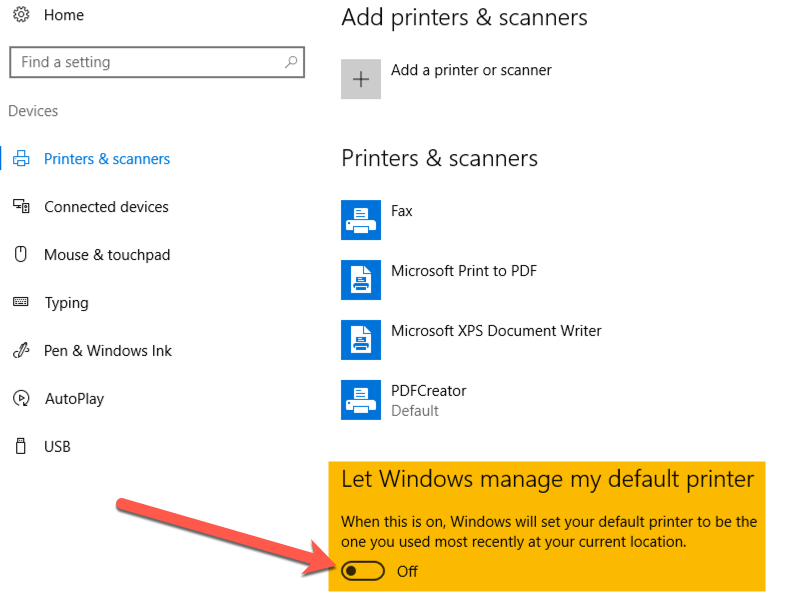
Save as PDF does not work on Windows
Unsere Software verwendet den ‚PDF-Drucker‘ (Teil von Windows 10) zur Erzeugung der PDF. Windows 10 versucht in Standard-Einstellung, den Drucker je nach Standort, an dem Sie arbeiten, automatisch für Sie zu verwalten. Das kann dazu führen, dass kein PDF erstellt wird.
Remedy
Öffnen Sie die Windows-Systemeinstellungen und wählen Sie unter „Geräte“ die Option „Drucker“. Sie müssen die Einstellung „Windows meinen Standarddrucker verwalten lassen“ deaktivieren.
Anti-virus tool warns about virus
During the software development we tested our software with the latest antivirus programs available at the time of development (Avira, AVG, Clamwin, McAfee, Norton).
As time has shown, there may be some other antivirus tools on the market that warn users about a virus in our software (since this tool claims to detect a known virus pattern).
In allen Fällen handelt es sich nicht um einen Virus, sondern um ein „false positive“ Muster in der Datei, das die Warnung verursacht.
Dies bedeutet, dass das Antiviren-Tool vor einer Datei in unserer Software warnt, die verdächtig erscheint – auch wenn es sich definitiv nicht um einen Virus handelt.
Falls Sie betroffen sind, aktualisieren Sie bitte zuallererst Ihr Antiviren-Tool auf die neueste Version – einschließlich der aktuellsten Antiviren-Datenbank!
If you continue to receive a warning, please contact us with the following information:
- Your operating system (incl. version)
- Your antivirus tool (also incl. version of the tool and date of the latest virus database)
- If possible, send us a screenshot of the warning where we can see which file and path is affected.
Wir werden dann versuchen, herauszufinden, welches Muster das Antiviren-Tool genau dazu gezwungen hat, ein „false positive“ anzuzeigen.
We will solve this problem as soon as possible and release an updated version of our software, which you can download from this website.
As a short-term solution, we recommend that you mark the file that was pointed out to you by the antivirus as safe in the antivirus tool. Alternatively, you can choose another antivirus tool. (There are many free tools on the market!).
 English
  Deutsch
  Italiano